Observe
The observe workflow allows you to observe a collection of points over time.
Start the workflow to choose positions you want to observe or reuse an already defined collection of points (e.g. from your previous injection).
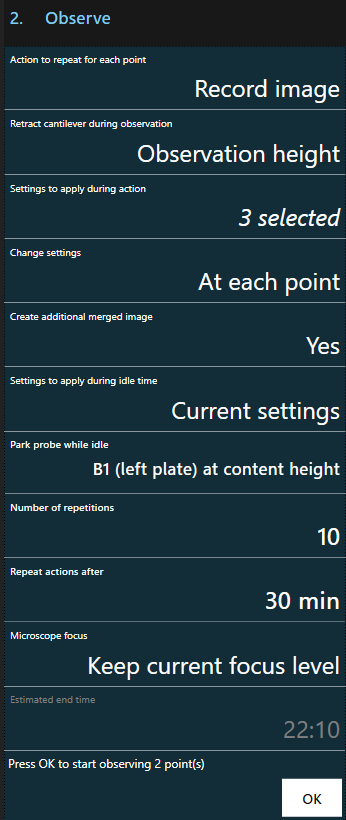
After selecting your points to observe, configure the workflow:
Note
You cannot control the Omnium manually when the observe workflow is running.
Note
You can cancel the workflow at any time. The results of a canceled observation are not lost and are available in the result history.
Actions
These are the currently supported actions to repeat for each point:
| Action | Description |
|---|---|
| Record image | Takes pictures of the current point according to the configured imaging settings. If multiple imaging settings are selected, they will be applied in the order how they are displayed. The pictures will be available in the result history. If two or more images are recorded per point an additional image will be generated with overlaid frames. |
| Record image (User-confirmed) | Same like “Record image” but stops the workflow until he user clicks the “Continue” button. |
| Wait for user confirmation | Moves to the point and stops the workflow until the user clicks the “Continue” button. |
Imaging options
It is possible to apply different imaging settings during the selected action and while waiting for the subsequent repetition (“idle” time) to begin. The settings can be created and edited in the preset tool.
The Current settings entry captures imaging options when the observe step is opened.
| Parameter | Description |
|---|---|
Settings to apply during action |
Allows selecting one or more presets to be applied during the action |
Settings to apply during idle time |
This preset is applied when waiting for the next repetition |
The following parameters are only available when multiple presets (during action) are selected:
| Parameter | Description |
|---|---|
Change settings |
Controls whether to change presets at each position or after visiting each position once. |
Create additional merged image |
Enables or disables creation of a merged image. |
Changing settings
The settings selected in Settings to apply during action can be applied in two ways:
At each point: The system will move to each point in turn and cycle through all selected settings at each point. This is the default.After all points: The system will cycle through the settings and then move from point to point without changing the settings until after the last point.
Multiple presets and image merging
When multiple presets are chosen for the selected action and Change settings is set to At each point, the action will be repeated for
each of the presets at each selected position. If multiple images are recorded in this way, the Create additional merged image switch
controls whether the software automatically creates an additional image composed of these images.
Probe retraction options
You can choose different positions (height) for the probe using the Retract cantilever during observation option:
| Probe position option | Description |
|---|---|
Keep |
Keeps the probe at the current height. In this mode, observation is only possible within the current sample area. |
Retract |
Fully retracts the probe. |
Observation height |
Keeps the probe above the plate at the configured observation height. This will provide more light than the Retract option. |
Parking options
Unless the probe is kept at its current height for observations, it can be parked at a different position during idle time.
This may be useful for prolonged observations to prevent the probe from drying.
Use the Park probe while idle option to open the configuration dialog, select a target sample area and Parking height.
Note
The probe will also be moved to the configured park position at the very end of the observation workflow.
Note
When the calculated idle time is less than 5 seconds, parking is skipped.
Repetition
To repeat the selected action multiple times, set the Number of repetitions and Repeat actions after options.
Each iteration will perform the selected action once for each point.
The repetition interval specifies the time between the start of two successive iterations. Therefore, if it takes longer to perform the selected action
on all points than specified in Repeat actions after, the next iteration is started immediately after the last point is processed.
Focus option
Depending on the installed microscope’s capabilities, it is possible to change focus at each observed position using the Microscope focus option.
Microscopes with motorized focus:
| Microscope focus option | Description |
|---|---|
Keep current focus level |
The system does not change focus at all |
Restore focus level |
The focus is changed to the focus level that is automatically recorded during position selection for each point. |
Note
If the lens of the microscope has changed since the position was selected, the focus might not be accurate anymore.
Olympus IX83 microscopes with IX-ZDC2 module:
| Microscope focus option | Description |
|---|---|
Continuous autofocus |
Automatically searches for focus at the beginning and compensates Z-drift during observation |
Autofocus at each point |
Automatically searches for focus at each position |
With the Continuous autofocus option, the system will wait and allow for manual focus adjustment before observation starts.
The IX-ZDC2 module uses a laser beam to detect the bottom of the sample container. Therefore, it is necessary to both remove the DIC slider and turn off the Omnium’s laser to avoid interfering with autofocus.
Note
If the system is not equipped with a motorized DIC slider, it must be removed manually.
Note
Changing objectives during observation automatically stops continuous autofocus.